


What Is Absenteeism and How to Address It at Work
To recover from illness, time off work is crucial. But when staff are repeatedly absent or off for extended periods, it…
Whether you’re new to creating video calls or simply need a refresher, we’ll be guiding you through how to set up a Teams meeting, different Teams features to explore, plus easy ways to make your meetings more productive.
The simplest way to create a Teams meeting is to start within the Teams Calendar. Head to the calendar by clicking on the calendar icon housed within the vertical menu to the left in Teams. Next, select a date/time slot, and you will be presented with a form where you can input your meeting details. You can also bring up the same form by selecting ‘New meeting’ in the top right-hand corner.
Within the form, you’ll find a section for adding participants’ names or emails. These participants will automatically get invites once you save and close the form.
Want to start a meeting straight away? Head to the top right-hand corner and click ‘Meet now’ to start a call. After clicking the ‘Meet now’ button, you’ll be given a link that you can share with others. This will allow them to access the call.

From a Chat:
From a Channel:
From Outlook
If someone else has created a Teams meeting and you want to join but can’t see your invite, there are a few places worth checking before you assume it hasn’t been sent. First, open the Calendar tab in Teams and look for the meeting there; sometimes it appears in your Teams calendar even if the email hasn’t come through yet. If it’s linked to a specific chat or channel, scroll through the conversation to see if a ‘Join’ button has been posted in the thread.
Been sent a direct meeting link in a message? Click that to join without the formal calendar invite. If the organiser has enabled dial‑in details, you can also join by calling the number and entering the conference ID they’ve provided.

No, but this is a feature you can easily enable. To start or stop recording during a call, go to ‘More actions’ > ‘Record and transcribe’.
Once your recording is processed, it will become available in your OneDrive and will also appear in the meeting chat or channel. It’s important to note that call recordings don’t capture everything (like whiteboards, shared notes, or embedded videos). To share those, you’ll need to export or share those items separately, either by downloading them from within Teams or using the specific sharing options for each feature, so that participants can access the full context of the meeting.

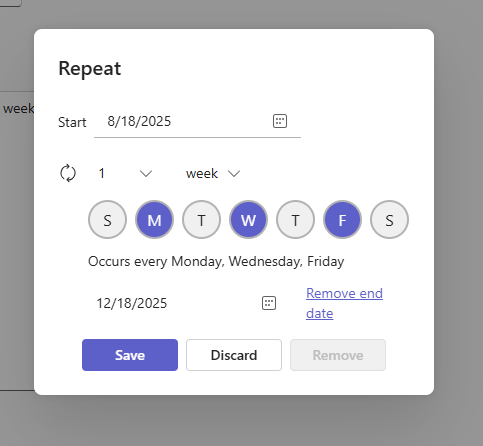
If you’d like to set up a meeting that recurs every week, month, or quarter, you can do so by using the drop-down menu within the calendar form. Simply follow the instructions in the first section to bring up the form, then scroll down to the drop-down that says ‘Does not repeat’. Using the options provided, you can select how often you want your meeting to occur.
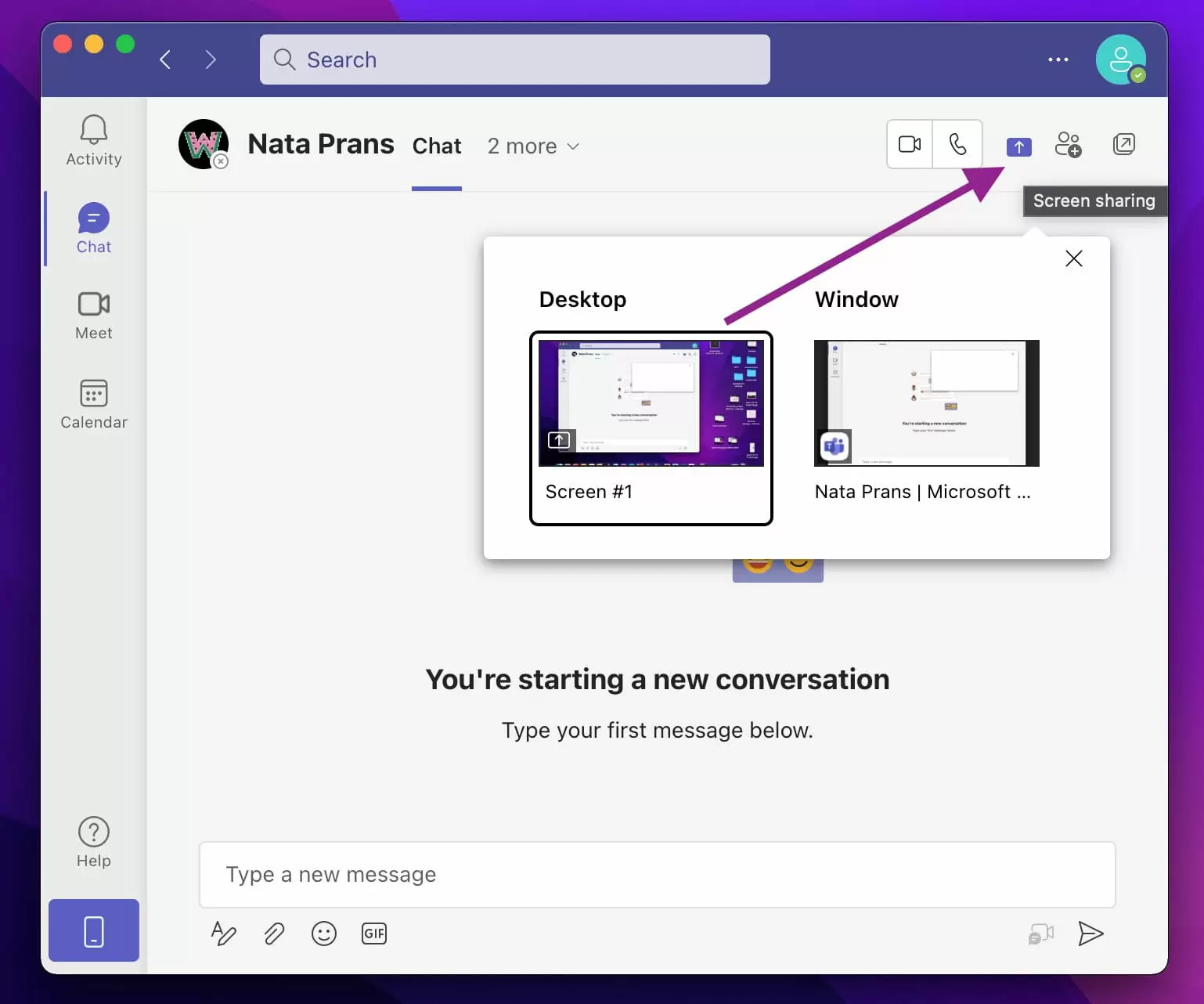
Sharing your screen during a Teams meeting is simple and helps participants to follow along with presentations, documents, or live demos. Once you’re in a meeting, look for the toolbar that appears near the top or bottom of your screen (depending on your device). Then, click the icon that looks like a square with an arrow. This is the ‘Share content’ button.
After clicking it, you’ll see a menu with several options: you can choose to share your entire screen, a specific window, or a PowerPoint file. If you’re using multiple monitors, you’ll be able to select which one to share. Once you’ve made your selection, everyone in the meeting will be able to see what you’re sharing.
Want to include audio from a video or presentation? Make sure you check the box that says ‘Include computer sound’ before you start sharing. To stop sharing, simply click the ‘Stop sharing’ button that appears in the toolbar.
Most of us are familiar with terms like ‘meeting overload’ and ‘Zoom fatigue’. To boost productivity and stop your meetings from becoming directionless or disengaging, try the following tips:
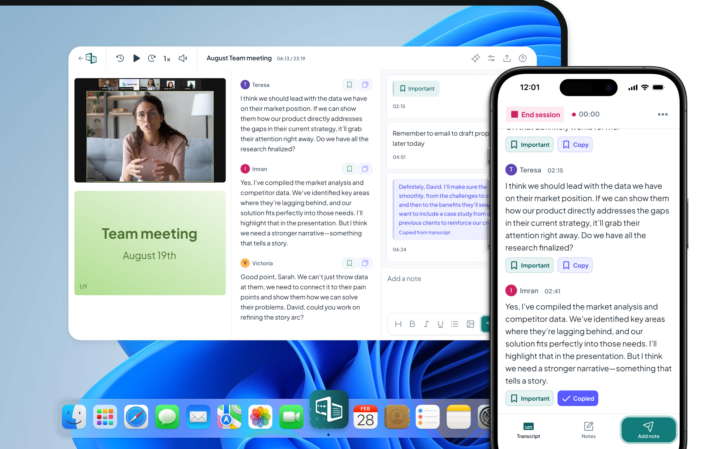
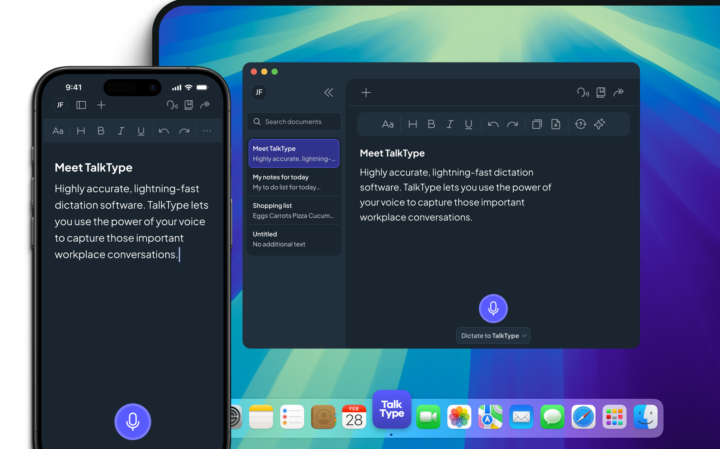
Use Live Transcription Software: When staff are tasked with taking notes or recording meeting minutes, they may find it difficult to be involved in the meeting itself. This can be especially hard for neurodivergent staff members, who may find dual-tasking a big challenge. Instead of relying on manual notes, keep everyone focused and receive accurate meeting summaries with Caption.Ed. This handy tool allows you to generate real-time captions and automatic transcripts, so no one has to choose between listening and note-taking.
Pre-prepare Notes: Before the meeting, create a clear agenda and share it with all participants. This gives everyone a chance to prepare their thoughts, gather relevant materials, and identify any discussion points they want to raise. A well-structured agenda sets expectations and helps keep the conversation on track.
Promote Balanced Contribution: At the start of the meeting, politely advise participants to be conscious of respecting everyone’s time. Use timeboxing for agenda items and appoint a timekeeper if necessary. If a topic runs over, consider parking it for a follow-up session or offline discussion.
End with Clear Actions: Wrap up each meeting by summarising key decisions and assigning clear action items. Make sure responsibilities and deadlines are documented and shared. This ensures accountability and keeps momentum going after the call ends.
Struggling to get your Teams call started? Here are a few common issues and how you can fix them:
Audio or video not working? Start by checking that Teams has permission to access your microphone and camera in your device settings. You can test your setup within Teams by going to ‘Settings’ > ‘Devices’. If you’re using external hardware like a headset or webcam, unplugging and reconnecting them often helps.
Can’t join a meeting? Make sure you’re signed in with the correct account, especially if the meeting is hosted by an external organisation. If you’re joining via browser, Microsoft Edge or Google Chrome tend to work best. Also, check for any available updates to the Teams app – outdated versions can cause access issues.
Screen sharing not working? On Mac, you may need to enable screen recording permissions in your computer’s ‘System Preferences’. If you’re using multiple apps that access your screen (like Zoom or Skype), close them before starting your Teams call. If sharing a specific window doesn’t work, try sharing your entire screen instead.
Followed these tips but still struggling to get your meeting set up? If you’re using Microsoft teams for business, you can reach out to your IT admin. Otherwise, be sure to check out Microsoft’s Teams Troubleshooting resource. There you’ll find lots of handy info for fixing common issues.

Our small but mighty team builds leading-edge software that people love. We pride ourselves on a user-led approach to product design. The voice of the customer shapes what we create and that’s exactly how great assistive tech should be made.
To recover from illness, time off work is crucial. But when staff are repeatedly absent or off for extended periods, it…

According to research, presenteeism leads to longer recovery times, lower productivity, and even “contagious presenteeism” where illness spreads to other employees.…

Ready to knuckle down and revise? We’ve compiled some of the best places to study according to students. In this guide,…